Setting Up Widget
Click Channel on the home screen. The channel you have created will appear here. If you have created multiple channels, click the channel for which you need to create the widget.
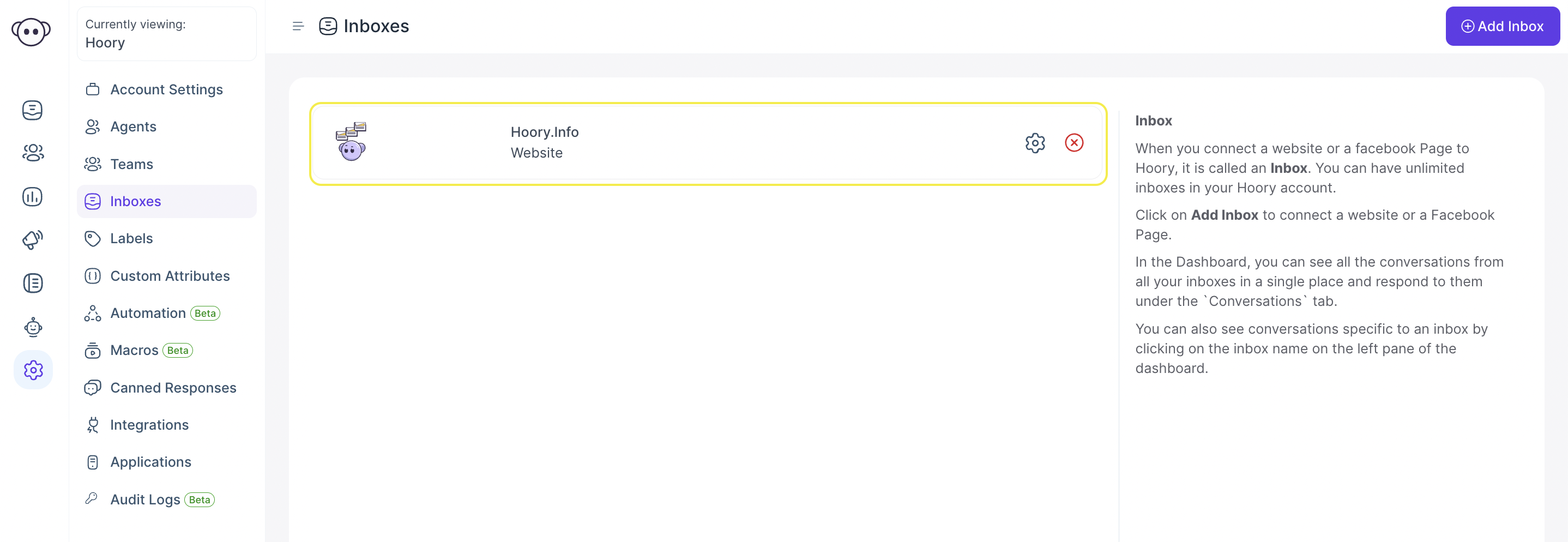
Click Settings. The below screen will open up. It shows the various Settings of the Channel which can be changed.
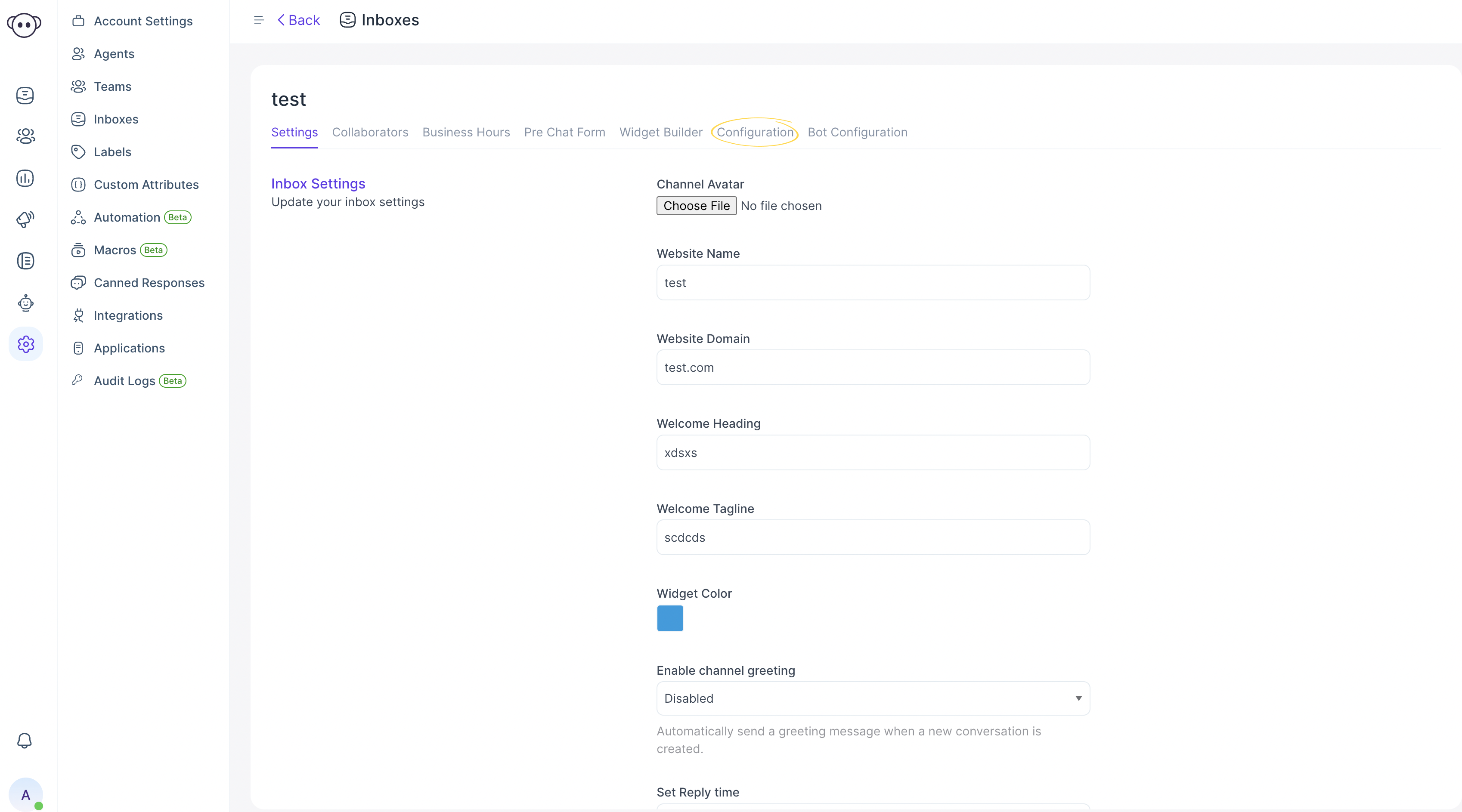
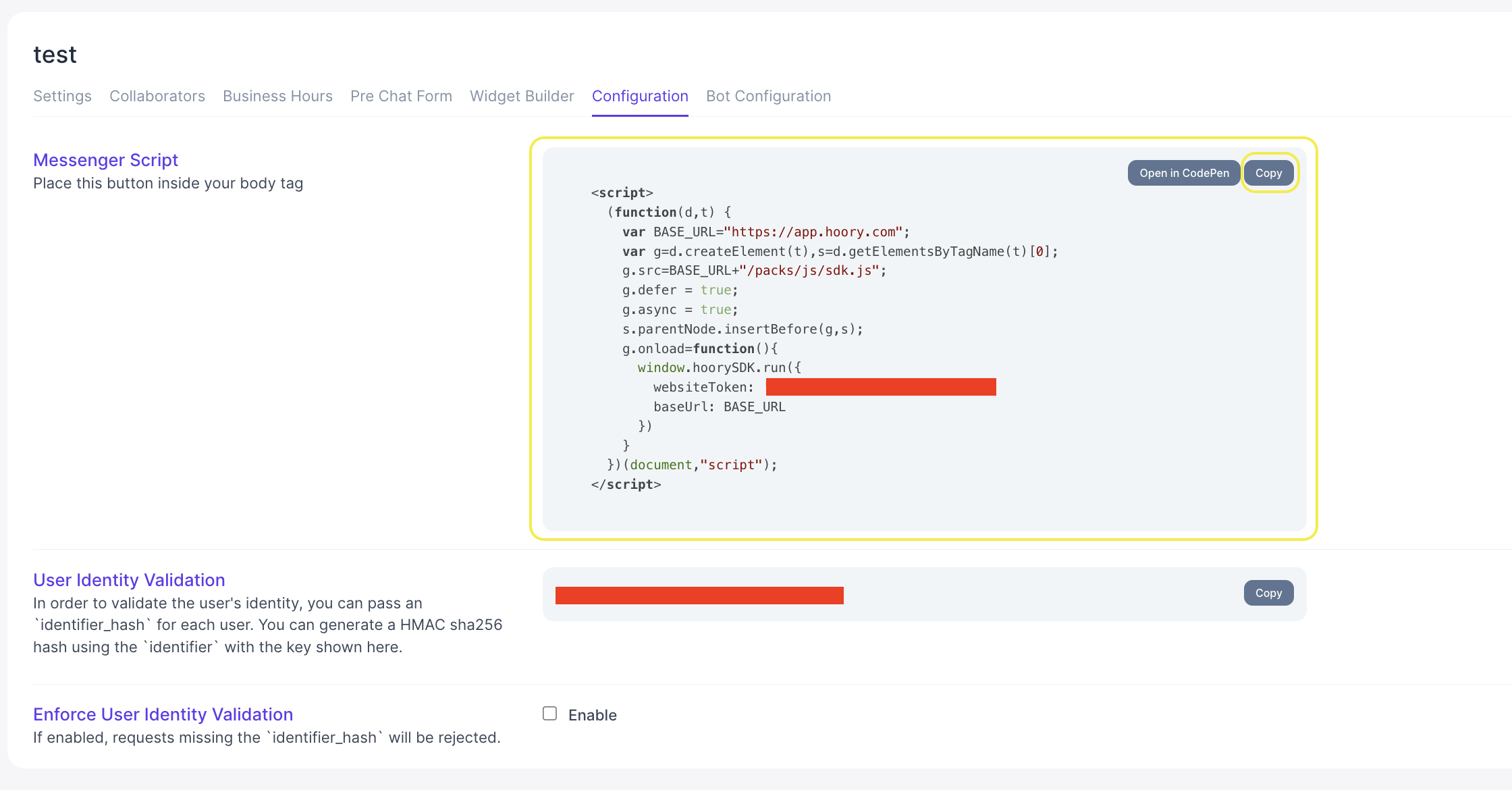
Click the Configuration tab. The code snippet to be copied into the website will appear here.
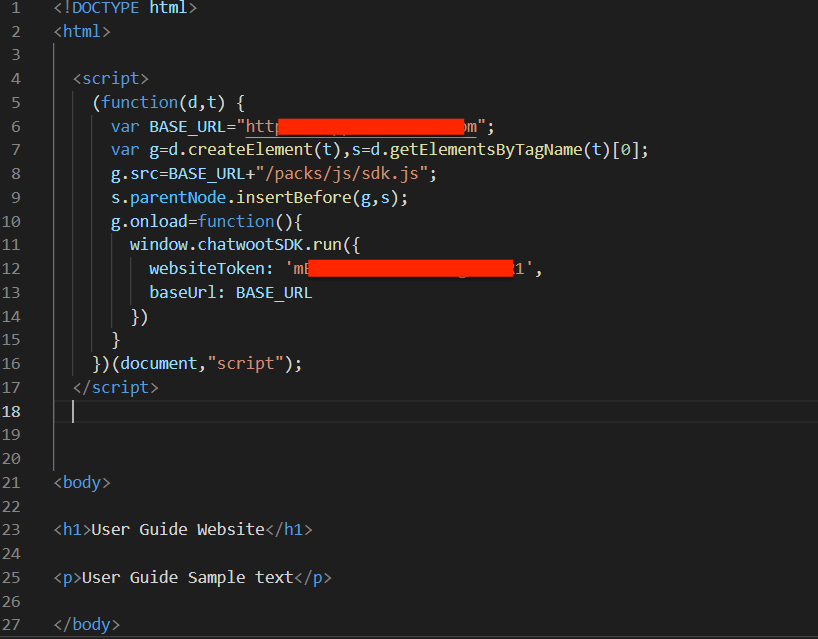
Root File of Website
Click Copy on the right-hand side. The code will be copied to the clipboard. Paste it in the Root file of the Website code. An example is given below.
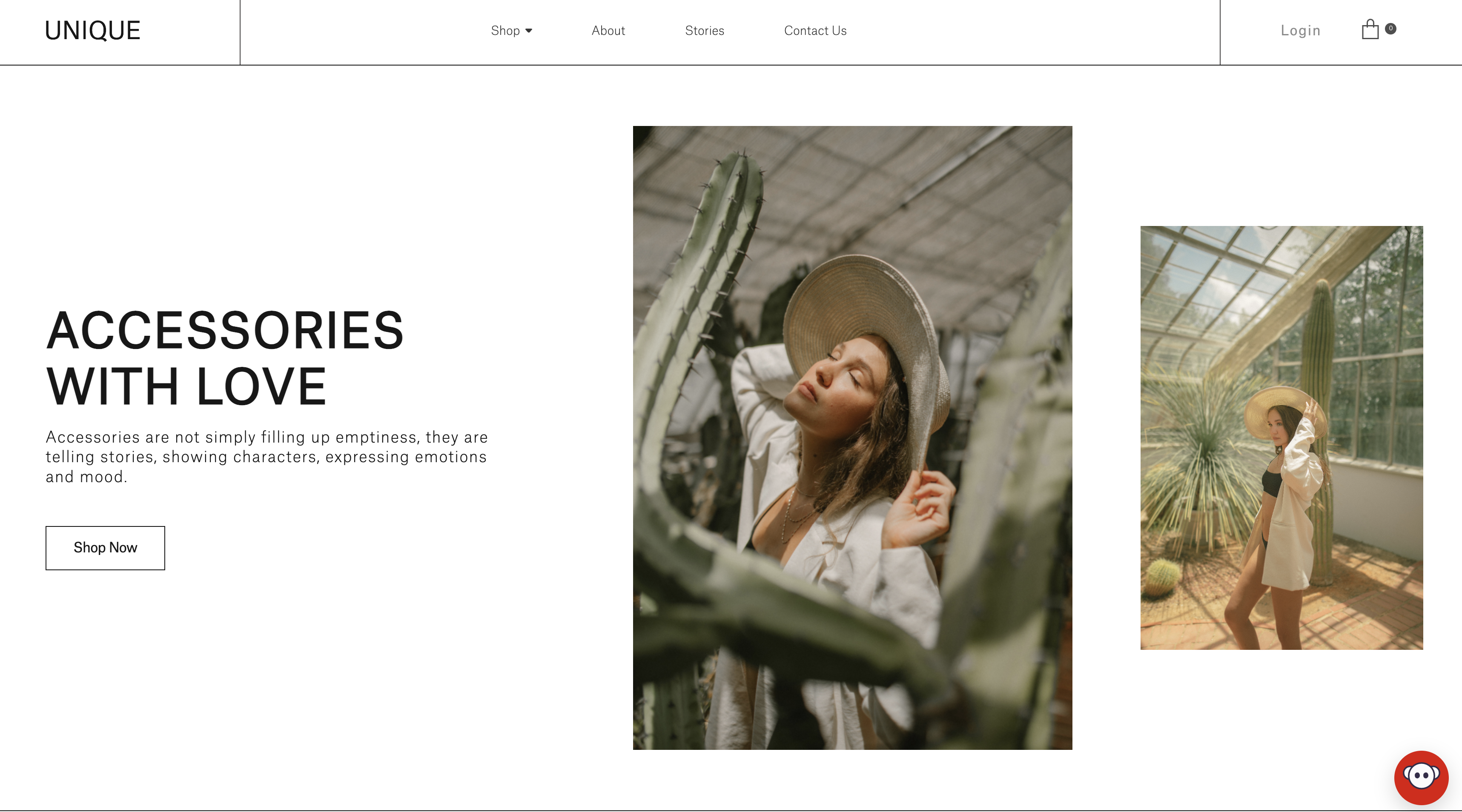
Now, if you open your webiste on the browser window, you can see that the Hoory AI Widget has been added to your website on the right-hand side,as shown in the screenshot below.
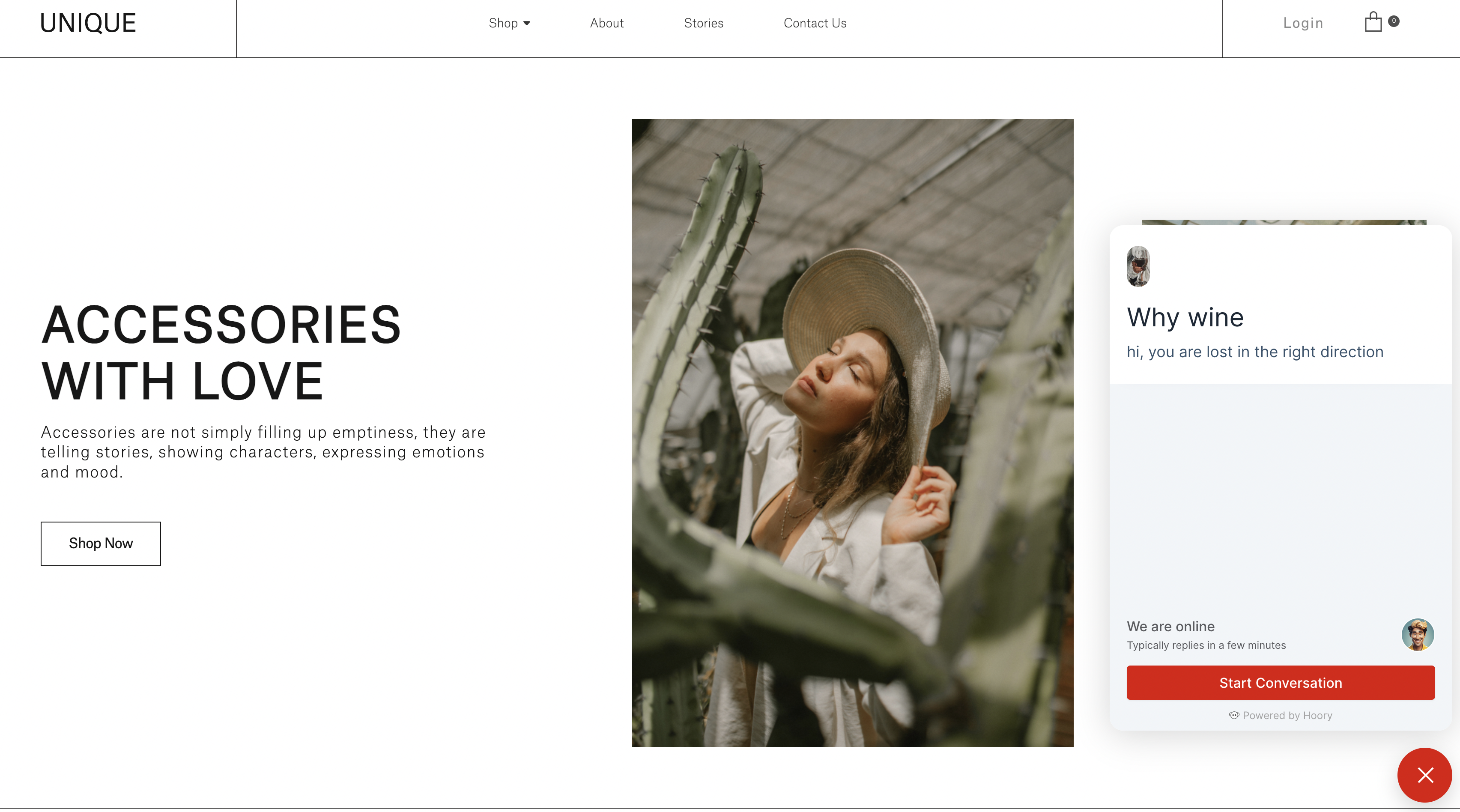
Click the Hoory AI Widget on the screen. The Chat Window will open up with the selected colour, Welcome Tag Line and Welcome Message. Customers will see this Chat window on their screen.
Once the Customer clicks Start Conversation and sends a message, the conversation tagline will appear on the chat window.
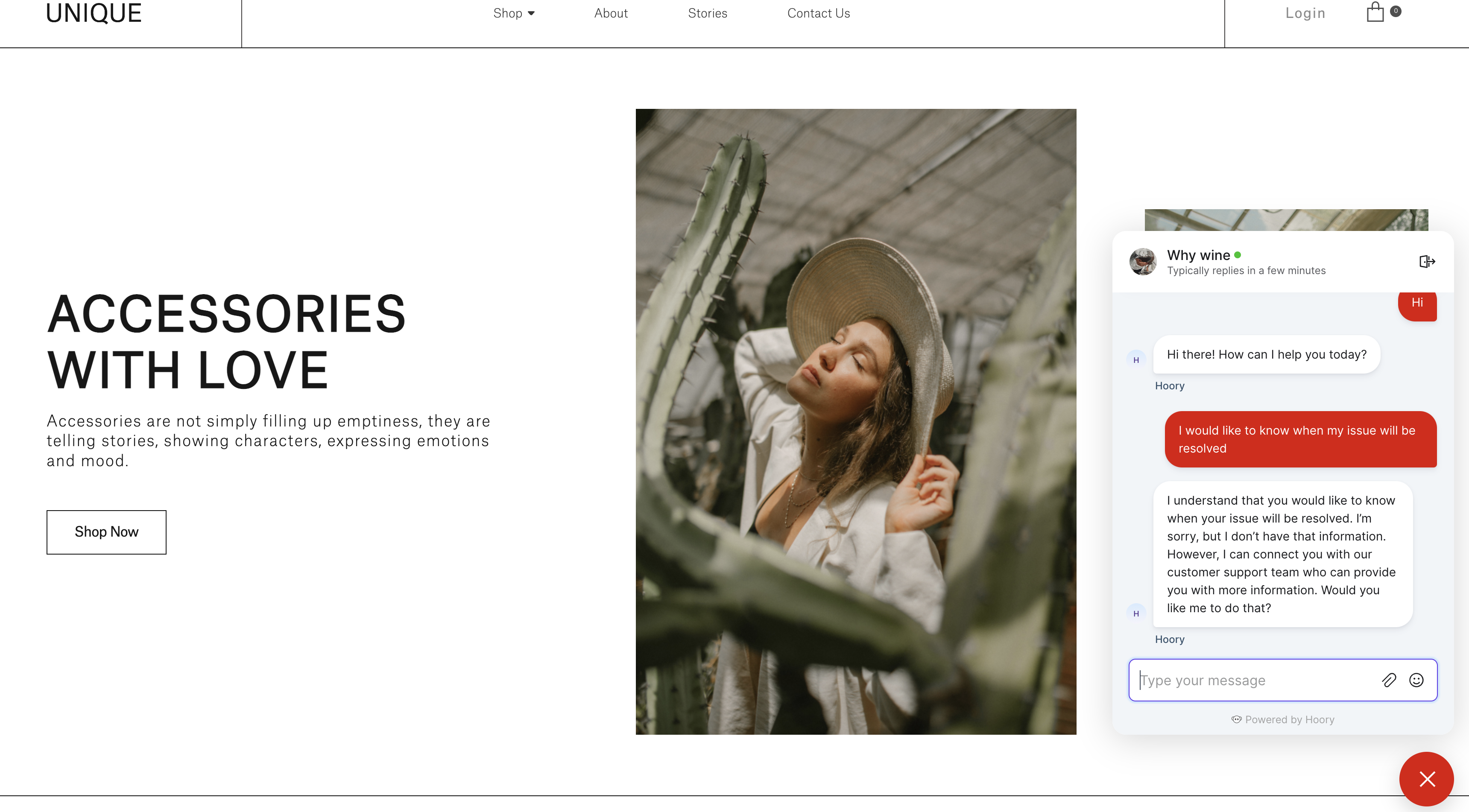
As soon as the collect email ID is enabled, the customer recieves a prompt to enter email ID.