Configure Your General Account Details
You can manage all general settings for your organization and workspace on this page. To access these options, navigate to Settings → Account Settings.
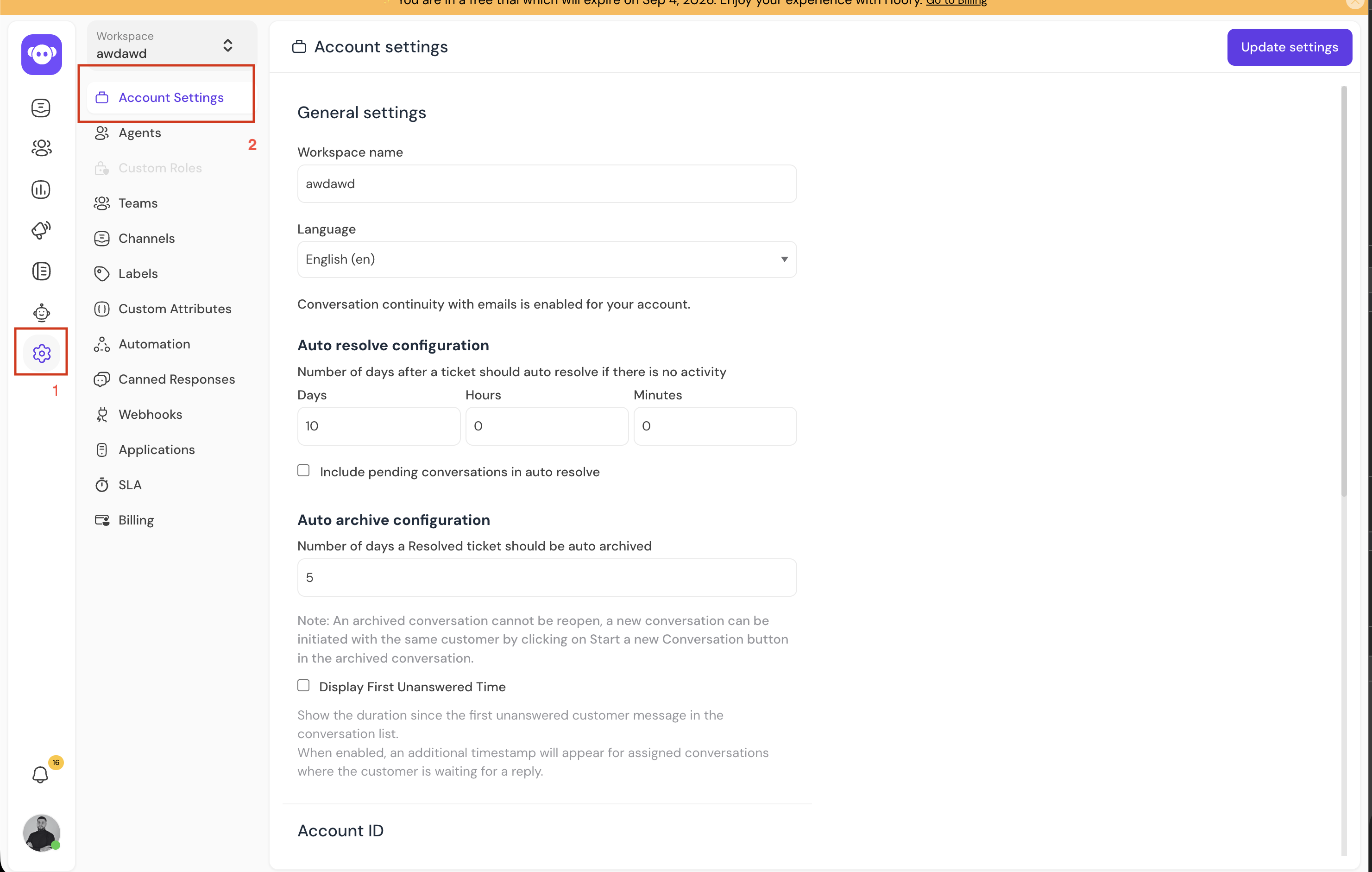
General Settings
| Field Name | Description |
|---|---|
| Workspace Name | Enter the organization or workspace name of your account (e.g., Hopkins Inc). |
| Site Language | Select the primary language for the account interface and conversations (e.g., English (en), Armenian, etc.). |
Auto Resolve Configuration
Configure rules for automatically resolving inactive conversations:
- Number of days after a ticket should auto resolve if there is no activity: Set the time threshold using Days, Hours, and Minutes. If there is no activity on a conversation after this duration, it is automatically marked as Resolved.
- Include pending conversations in auto resolve: When checked, conversations in the
Pendingstate are also eligible for automatic resolution once the inactivity duration expires.
Auto Archive Configuration
Manage how resolved conversations are permanently archived:
- Number of days a Resolved ticket should be auto archived: Specify the number of days a ticket remains in the Resolved status before it is automatically archived.
An archived conversation cannot be reopened. A new conversation can be initiated with the same customer by clicking the Start a new Conversation button within the archived conversation.
- Display First Unanswered Time: Check this option to display the duration since the first unanswered customer message directly in the conversation list. When enabled, a timestamp appears on assigned conversations where the customer is waiting for an agent reply.
Account ID
Your unique Account ID is displayed in this section. This ID is required whenever you are building an API-based integration or configuring developer webhooks. Click the Copy button to quickly copy the ID to your clipboard.
Unanswered Chat Alert
- Setting Options: Enabled / Disabled
- Description: When enabled, email notifications are automatically sent to selected administrator users if an incoming customer chat remains unanswered by an agent for a specified duration.
Chat Pick-Up and Auto-Assign (Beta)
- Setting Options: Enabled / Disabled
- Description: Enables agents to manually accept or decline incoming website chats. Any missed or rejected chats are automatically logged and included in reports for monitoring and performance evaluation.
Auto Busy
- Setting Options: Enabled / Disabled
- Description: Automatically switches an agent's status to Busy upon accepting, rejecting, or missing a chat prompt. This prevents additional incoming chat prompts from being assigned to the agent until they manually switch their status back to Online.
Enable User Blocking for Agents
- Setting Options: Enabled / Disabled
- Description: Controls whether agents have permission to block/unblock disruptive or spam users directly from the conversation thread.
Customer Typing Preview
- Setting Options: Enabled / Disabled
- Description: Enables agents to view a live, real-time preview of what the customer is typing before the message is sent. This helps agents prepare faster and more accurate responses.
Incoming Message Background Color
- Description: Customize the visual appearance of the chat interface by selecting a color from the color picker. This color is applied as the background color for messages received from customers.
Saving Changes
After updating your configurations, click the Update Settings button in the top right-hand corner of the screen. A confirmation message ("Successfully updated account settings") will appear once your changes are saved.