Buttons
The Buttons input block allows you to offer your user predefined choices, either single choice options or multiple choices
Single choice
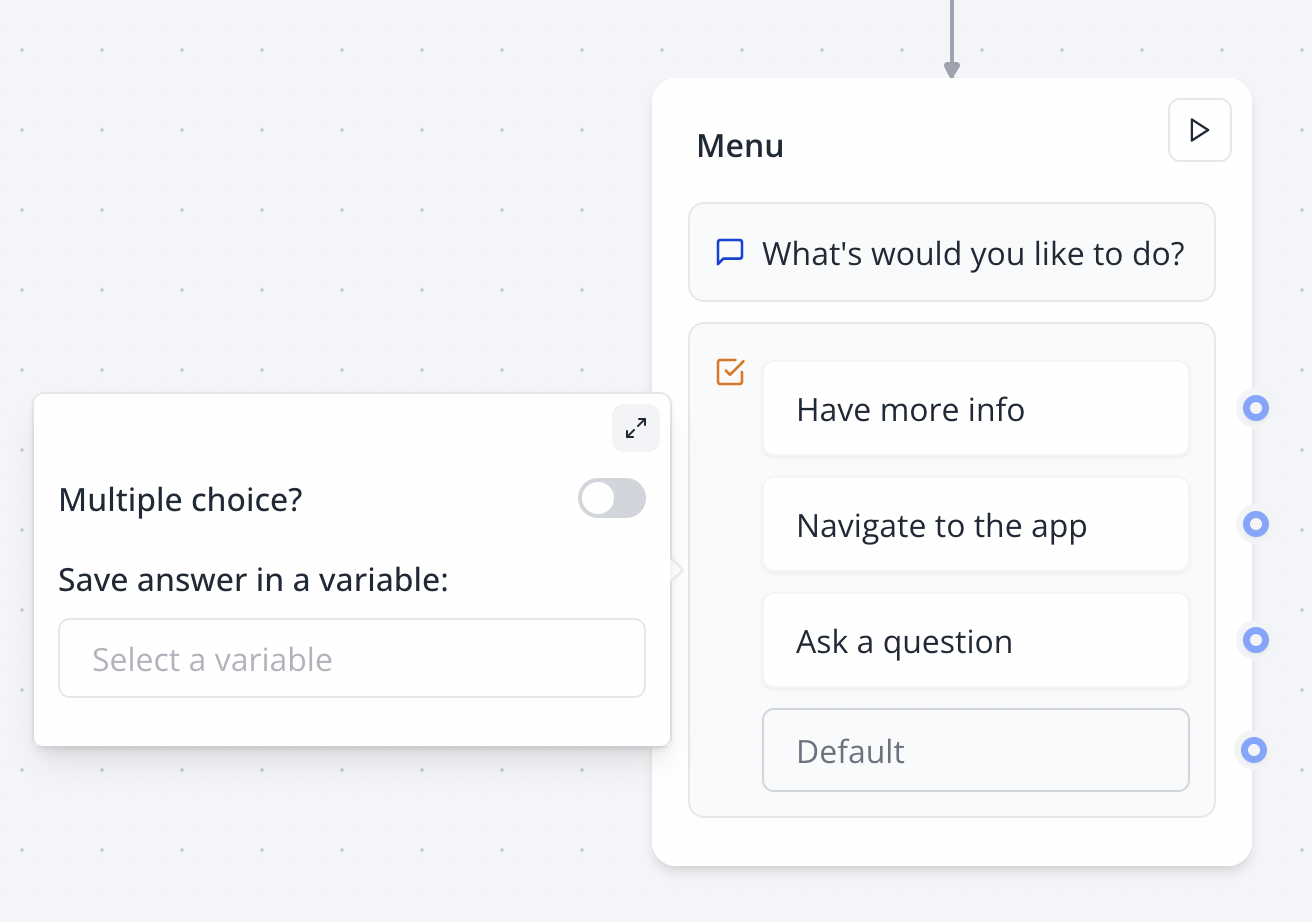
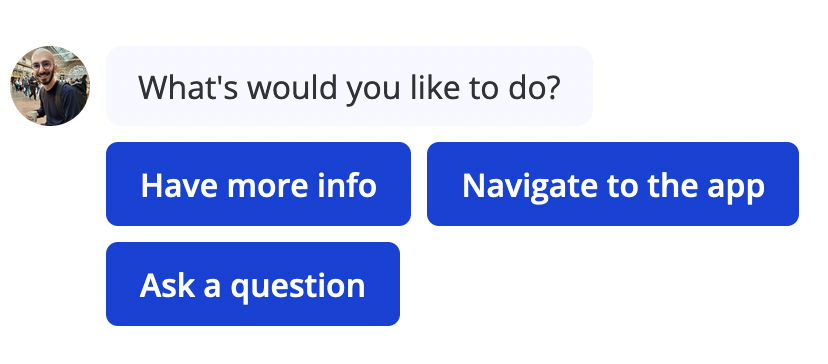
Single choice input allows you to directly split your flow depending on what the user selects by linking any choice to a specific path in your flow.
Link the "Default" item to determine the default path independent of what the user chooses.
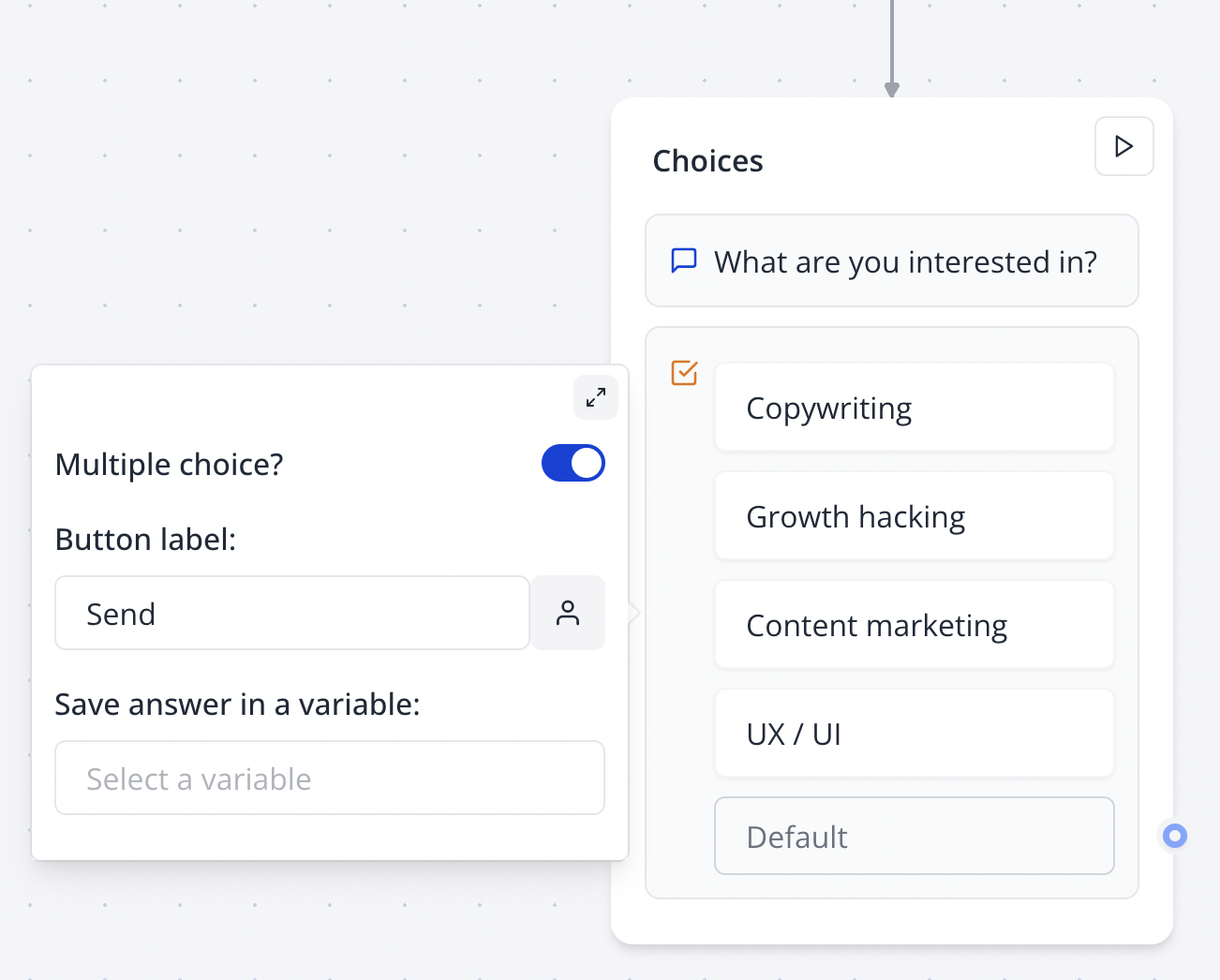
Multiple choices
Dynamic items
Instead of adding items manually, you can also display a dynamic list of items based on a variable.
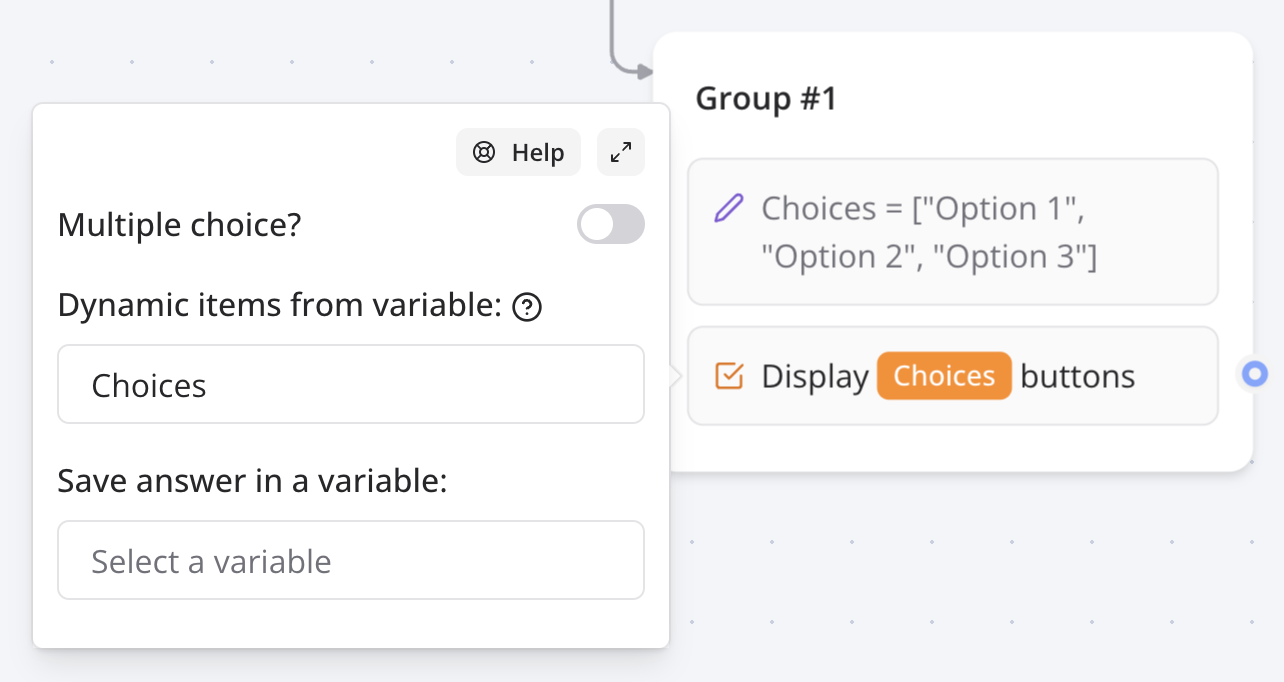
This is useful when you want to display a list of items from another data source. For this to work, you first need to make sure the variable you are using contains a list of values. This list can be extracted from an integration block like Google Sheets.
How to
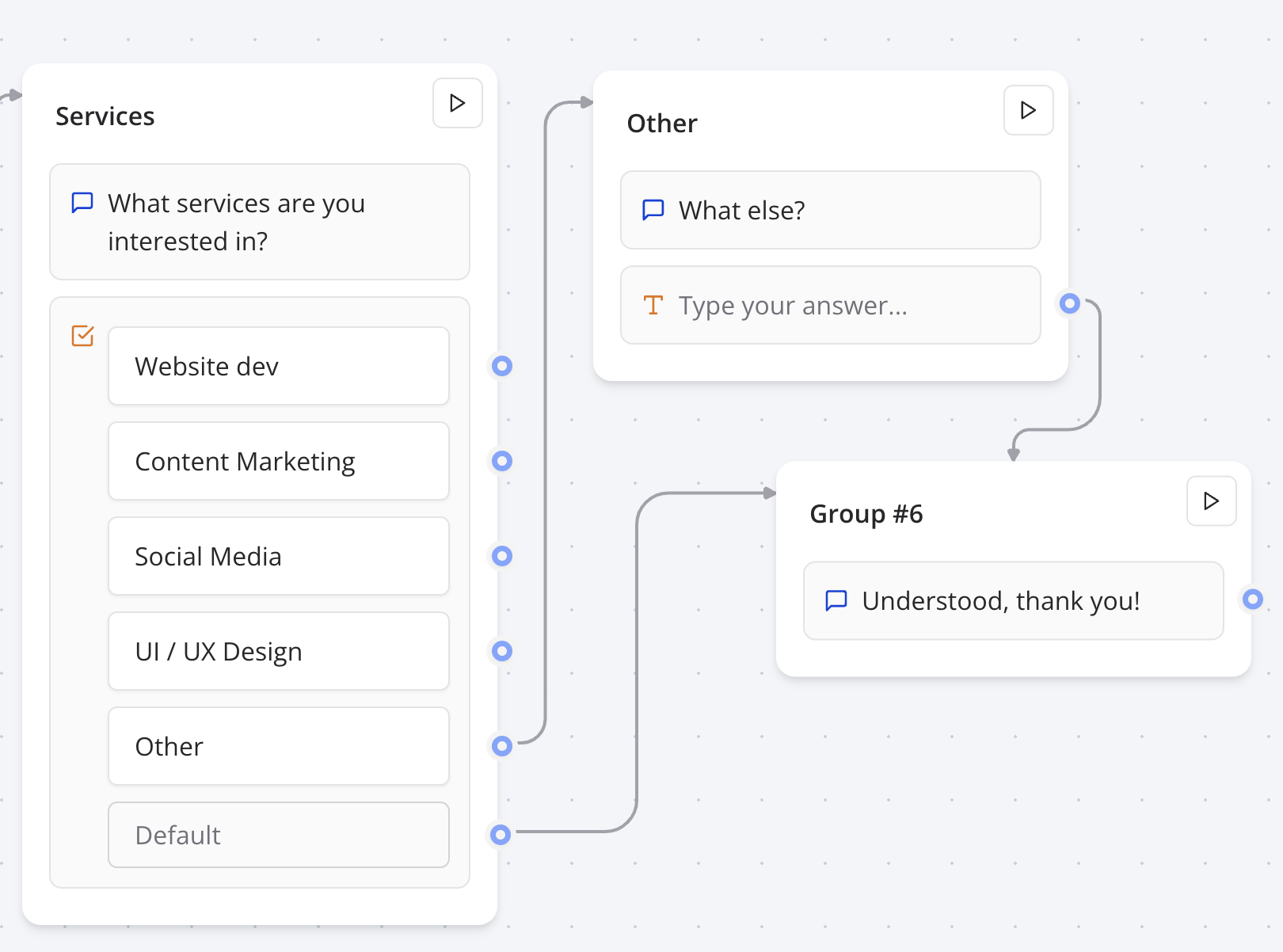
Add a "Other" button
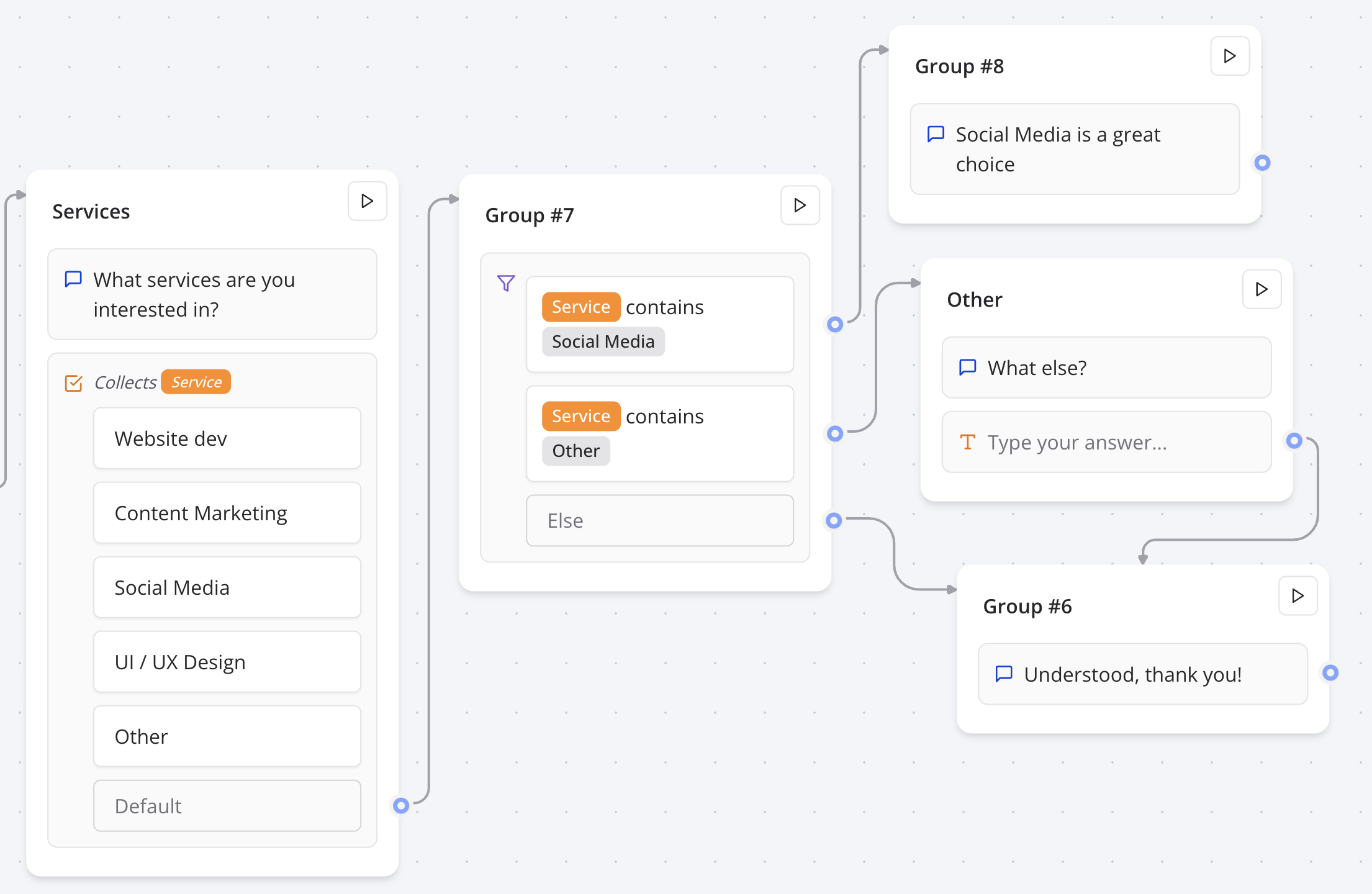
Sometimes you want to allow your user to enter a value that is not in the predefined choices. You can do this by adding a "Other" button and connect it to a "Text" input block.
Different replies based on multiple choices
If you'd like to have different replies based on the multiple choices the user selects. You will need to
- Save the answer into a variable.
- Add a "Condition" block
- Add comparisons based on the value of this variable